 On Firefox, there’s a singular switch. Toggle it, and AI features are off by default. You can choose what ones to turn back on, but at its core, there’s one toggle for AI. Kagi has one too, part of the reason I’ve used it as my search engine for years. I love that. Consumers often don’t want to use AI because it’s immoral (period), and instantly reduces your ability to solve problems or learn, so companies—good ones, that is—offer them a choice. One toggle switch, and it’s all off.
Apple is not one of those good companies.
Apple previously made it easy to turn off all of their “Apple Intelligence” features with just one toggle, but decided with iOS 27 that we shouldn’t be allowed to do that anymore.
I recently bought an iPhone Duo. I’m testing it, trying to figure out if the trade-offs are worth the upgrade over the iPhone 13 mini that’s still the best form factor Apple ever put in a phone, but one thing struck me as annoying and invasive from the moment I unboxed Apple’s latest iPhone: the damn thing was full of AI.
I couldn’t read an email, search the web, highlight text, or take a screenshot without Apple’s AI shoving itself in my face asking if it could think for me. No, thanks, I prefer to do my own thinking and don’t need a lobotomy today, thanks anyway, Apple.
Fortunately, you can turn most of the AI junk off. Not all of it, but hopefully enough.
In This Article:
The AI You Can Turn Off (That I’ve Found So Far)

My response might be silly, but at least it makes more sense than the suggestion
In iOS 27, Apple took away the ability to quickly turn off Apple Intelligence. But that doesn’t mean you can’t still turn off some of its most annoying features. Companies like Apple, Google, Microsoft, and others have wasted time and money incorporating their own or other company’s AI into their products, so they’re not going to let you turn it off easily. Fortunately, there are still ways to make iOS less annoying again.
Content & Privacy Restrictions
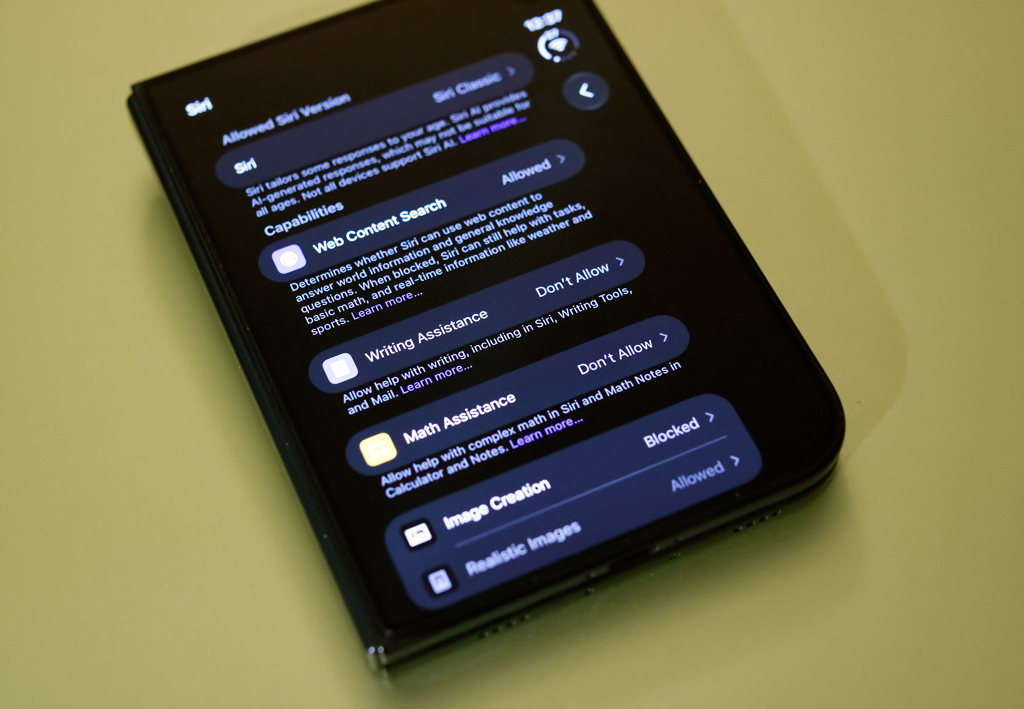
The best tool you can use to shut off a large number of AI features is not where you’d expect it. For Writing Suggestions and other features, you can find them in a Screen Time submenu. Find it in Settings -> Screen Time -> Content & Privacy Restrictions. Within Content & Privacy Restrictions, you can turn off Writing Assistance, Image Creation, and Extensions. The latter is important to block the built-in ChatGPT extension for Siri. You can also turn on Siri classic, not the AI version of it, or completely turn off Siri.
Speaking of Siri, there are, of course, other Siri options. In Settings -> Siri, you can ensure ChatGPT is turned off, turn off Automatic Visual Lookup, add excluded apps, and block Siri from working entirely.
Emails and Messages
You’re not done though. Your messages and emails will still have annoying AI suggestions and summaries. You can turn these off in the app settings themselves. These are in the main settings app, then Apps -> Messages (and Email) -> Summarize Messages. Here you can turn them off. You can also turn off “Personalize Smart Replies” in the email app’s settings. You can find more settings like this on Apple’s support page, but these are the main items.
Privacy
You’ll also want to turn on some Privacy & Security options that may use AI or your data. In Settings -> Privacy & Security, you’ll want to turn off Journaling Suggestions, Sensitive Content Warnings, and turn off the Analytics and Improvements and Apple Advertising data collection items.
We Just Want a Single Switch
Apple didn’t make this easy because if you had more choices, you probably wouldn’t use the people-enslaving, environment-killing, content-stealing features of AI to type a stupid text message to your mom. Apple, Google, Anthropic, OpenAI, Nvidia, and others need you using AI, and people just don’t need a product that does what their brain can do, but worse. Therefore, companies need to force it on you so you can forget how to do anything and fall into the trap of relying on it. Those looking to centralize control of information and even your ability to use technology are dependent on you falling into the AI trap. Fortunately, in just a few minutes, you can still turn off all Apple’s information-centralizing, labor-stealing AI trash.
Just a shame it isn’t a single toggle switch.